There’s been a lot of screaming all over blogland when recently, it was announced that Picnik photo editing is closing down in April. Lots of bloggers have been using Picnik for a few years and have enjoyed the ease of use and all the fun bells and whistles that this online photo editing software provided. I have used them many times myself and really liked some of the special effects.
So what are the alternatives? I am not an expert on all of the alternatives out there, but there are a few. Kate wrote a post about options and so did Susan, so there are certainly plenty to choose from out there that are free.
So, I’ll give you my option. For most of my photo editing, I have been using Photoscape for a few years now. It’s a free download and once you have it on your computer, you don’t have to be online to use it. I really like that part! I’ll talk more about how important pics are in blogging when I get more into my blogging story, but photos and editing have become a huge part of my blog.
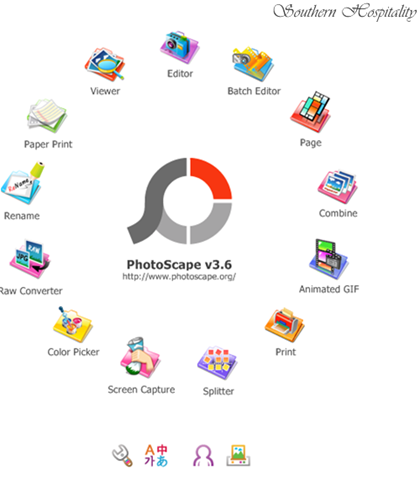
Here are all the categories available when it opens up for use. I use Editor and Batch Editor the most. I have no idea what Splitter and Screen Capture does, but this program does a lot. It does combine photos too, but I don’t like just the straight across or straight down combining. I do still use Picasa for collages of photos, Picasa does those really nice. I’ll take you on a tour of how I use Photoscape.
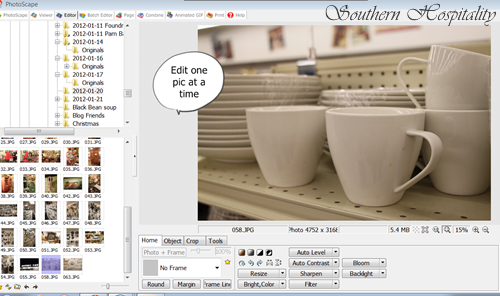
You open up the Editor and it brings up all your photos on your computer, so just find the file that has the photos you want to work on. You click on one pic at a time to edit individually. I usually rename my photos inside my computer files before I bring them into Photoscape to make it easier to see the ones I want to edit. When you use the Batch editor, Photoscape saves all your work in a new Output folder, so they are easy to find if you use the Batch feature for resizing and watermarking a group of photos. If you save one at a time, it will keep them in the same folder, but you can see the ones that are resized by hovering over them.
Under the Home tab, you can see all the things this program can do, from Bright, Resize, Sharpen, Filter, Bloom, Backlight. Under the Bright tab, there are all sorts of things you can do there, from Color Enhance, to White Balance, and brightening photos several degrees. I use that all the time and if I have photos that are too blue or too yellow, I will play with the White Balance to try to get it as white-white as possible. You can choose a spot in your photo that has white and click on that and it will automatically whiten your photos. 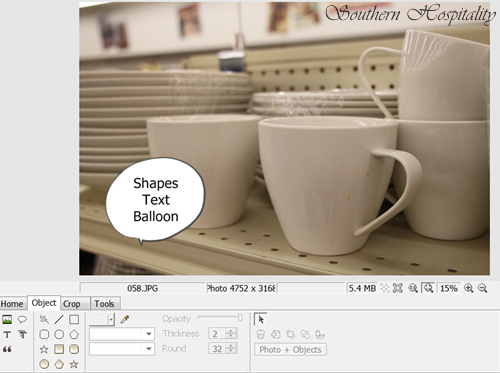
Under the Object tab are all sorts of shapes you can draw. You can use these for lots of features. Add in color or make them opaque, add Text inside the shapes, lots of things to do with these. You can draw lines and arrows too. And this is where Text is added with the large T to individual photos. Choose from many different fonts and you can probably even add more fonts to use, I haven’t tried to bring any in yet. When I do batch edits, I automatically add my watermark on my photos like you see on these. You can choose where you want the watermark to be and the size, color, etc. You can see I added this one in the top right corner.
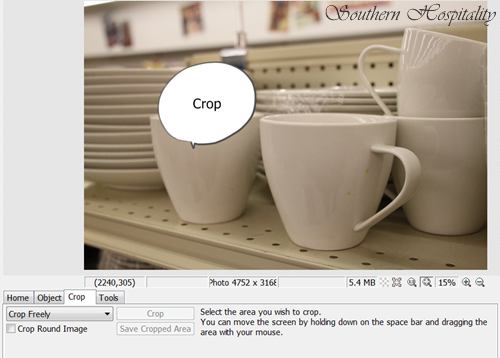
Under the Crop tab, you can obviously freely crop your pic and save it.

Under Tools, you see Red Eye Correction, Mole Removal, Mosiac, Paint Brush, Clone Stamp, and Filter Brush. I’ve used the Clone stamp to add in something in a pic that was missing or to cover up a vent or something by painting over it with the wall color. You click on a correct spot in the photo and then to cover up a blemish or spot, click over it with the Clone stamp. I haven’t used all the other features here, but they are there waiting!

Under Batch Edit, you will see this screen on the right side of the page. This is where you can choose Text to add. Click that box, and then click on the yellow pencil and it will bring up the box that allows you to add text. Choose your Font, Size, and Color, where you want it placed and it will add text automatically to all the photos you are Batch editing.
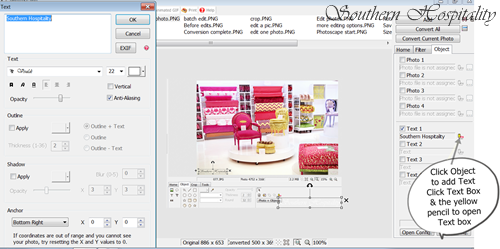
Here’s the whole screen you will see in Batch Edit for adding Text (box on the left). I usually edit each pic individually for Color, Contrast, straightening, etc. and then drag them into Batch Edit to resize and add my watermark as a group.
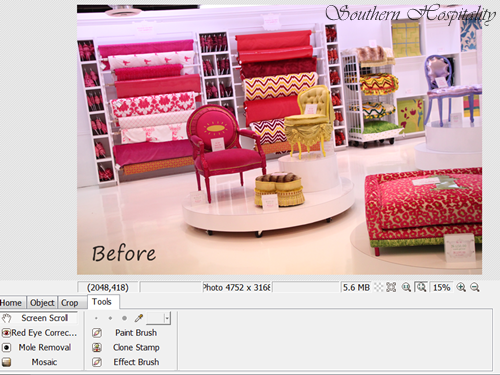
Here’s a Before pic. You can see it’s a little pinky in color, so I want to brighten and whiten it with the Brightening tool and White Balance.
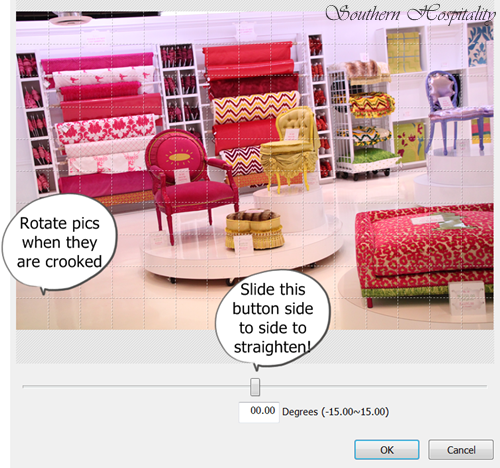
It’s also a little crooked so under the Home tab, I click on the curved arrow that brings up this handy-dandy slider (Rotate Arbitrary), right next to Rotate 90º L and Rl. Click the arrow to open and I can move that slide tab back and forth to straighten the photo. It’s amazing how much better photos look when you straighten them. See the grid that comes up on the photos? This helps you line up the lines inside your photo with the lines on the grid to make a photo straighter. Slide it to straighten and click OK.

And here is the photo after Brightening, White Balance, and Straightening have been applied. Much better, don’t you think?
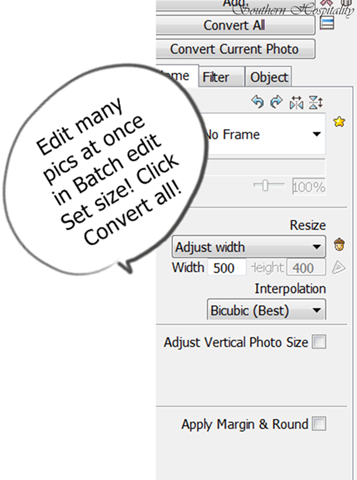
For Batch edits on resize and adding Text, set that number where you want it (my blog holds 500 width pics), then click Convert All.
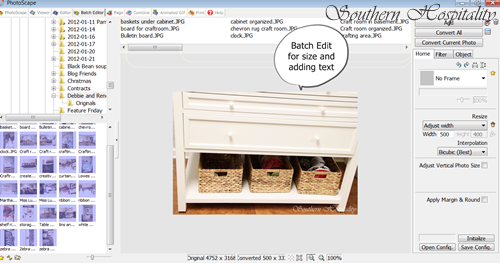
It works like a charm for resizing a whole bunch of pics at a time.

And the conversion is complete. It will resize and add text to as many pics as you want all at one time. This is my time saver!

I tried out Kate’s trick with the opaque band with text across the bottom and it works great too. You can do all sorts of things with those shapes.
So, that is my little tutorial on Photoscape and how I use it for my photo editing. It has worked well for me for a few years, so I will probably stick with it for the most part.
If you are looking for a photo editing alternative to Picnik, I would highly recommend Photoscape. Give it a try and let me know what you think!

Coming up next week for my 5 year blogging anniversary, I’ve got a whole week of giveaways lined up for you, starting Sunday afternoon! There are all sorts of fun things coming up for grabs, from jewelry, original artwork, bedding, sheets, and so much more, so I hope you’ll be here with me in the next few days and take advantage of all the great products that will be available to win. I have had an absolute blast the last 5 years with this blog and all of YOU have been a huge part of the fun for me, so thank you all SO much for your support and for coming by to visit day after day. All of that has been a huge blessing in my life!




Thank you for sharing these great tips! I’m definitely going to try photoscape.
Thanks Rhoda! Hope you’re having a great weekend!
Debbie
WOW – great advice. I am so new in blogland that I haven’t even gotten to ‘editing’ photos yet. I am still working on the ‘look’ of my blog and just found Windows Live Writer – which is like CHRISTMAS!!!!
Thank you so much for sharing – I will bookmark this to read again and again
Have a wonderful weekend.
Rhoda – between this article and your blog series you are saving me! Thank you!
Thanks for the tips!
Thank you Rhoda!! Can not wait for Haven, those photo workshops will be a treat and combined with this….maybe I can take a great photo!! 😉
Thank you so much for the info! I have only been blogging for a month, but was told about Picnik right away and have been using it for everything – one more new thing to learn 🙂
So excited to celebrate your 5 year blogging anniversary! Have a great weekend!
This looks like a great program, thanks for the recommendation. I’ve been using PaintShopPro for many years and it’s a fine program, but this batch processing is fantastic!
Thanks Rhoda! I too have been using picnik for so long. This Photoscape looks really awesome though. I am definitely going to try it out. Thank you so much for the tips!
Great post Rhoda! I am going to get this program and try it out. One thing I did like about Picnik is the ability to upload my photo’s on one computer and access them on my laptop. I will see if I can use this program in conjunction with Picasa and do something similar. Thanks so much – I am pinning it!!
Thank you, this is very helpful! I love the edit batch feature, if that is something you can do on Picnik I haven’t found it! I’ve been pretty much avoiding this whole thing but I guess it’s time to get busy playing with some other options. Thanks again!
I use a combination of Picasa and Photoscape to edit my photos, but I liked Picnik for the features that let me add frames and fun effects. glad I’ll have Picnik for a few more months!
My photos, when downloaded, go automatically into Picasa, where they are also stored. I use both programs for my collages- each of them give me different and great options, so often I use them in conjunction with one another. I’m looking for the fun features in a new program now, since I have the basics coveed in Picasa & Photoscape. good of you to share with those who are unaware of both programs. 🙂
I’ve been using Picnik and was really upset about their closing, it seems they’re trying to push people into Google + which doesn’t seem very impressive. I’m definitely going to download the Photoscape…thank you so much for this info!
I have used photoscape off and on for a couple years. I’ve never done the batch editing…I’m off to figure that out now as that would be a great time saver!
Thx for sharing…I always uses photoscape but I just learned some new things 🙂 thx alot
What a helpful post! I’ve been looking for a new photo editing program, and the batch editing looks super helpful. Thanks Rhoda!
Thank you Rhoda for the clear info. Photoscape seems to be user friendly which was what made Picnik my go-to choice. Thank you for plainly stating & showing the process. Download complete…here we go!
Love this tutorial Rhoda, pinned it and can’t wait to try it out!
Kate
I was so excited, then found out it’s for Windows only. Bummer. Hope they’ll come out with t Mac version soon. Great tutorial, BTW!